 SIGN IN / UP
 Control Panel







Open WebUI
Open WebUI is a web interface for working with language models. It handles all the visual aspects: chat, conversation history, model management, and document uploads for analysis. The platform works on top of Ollama with local models or connects to external APIs — OpenAI, Anthropic, and other compatible providers.
Manual installation via Docker takes time: you need to set up Docker, launch Ollama, configure launch parameters, and set up networking between containers. The marketplace image eliminates these steps. You simply select the image, create a VPS, and within a few minutes open the ready-to-use interface in your browser.
What you need
- An account with a VPS provider that has a marketplace of images
- VPS with a minimum of 2 vCPU and 4 GB RAM for running without GPU
- For Ollama with 7B parameter models: 8 GB RAM and above
Choosing the image and creating the server
In the marketplace, find the Open WebUI image. Click Deploy and select the server configuration. The following is sufficient:
- CPU: 2–4 vCPU
- RAM: 4–8 GB
- Disk: 40 GB SSD (Ollama models take 2–8 GB each)
Set a password or attach an SSH key and click Create. The server will be ready in 1–2 minutes.
Connecting via SSH
After the server is launched, connect to it:
Linux / macOS:
ssh root@IP_Server
Windows - PowerShell:
ssh root@IP_Server
Enter the password you set when creating the VPS, or use your SSH key.
If you're new to SSH, a detailed guide on connecting from Linux/macOS or from Windows using PuTTY is available at the following link:
Windows, Linux/macOS — Connecting via SSH
Retrieve the credentials
The administrator username and password are stored directly on the server in the /root/.password_credentials file. Display them by running the following command:
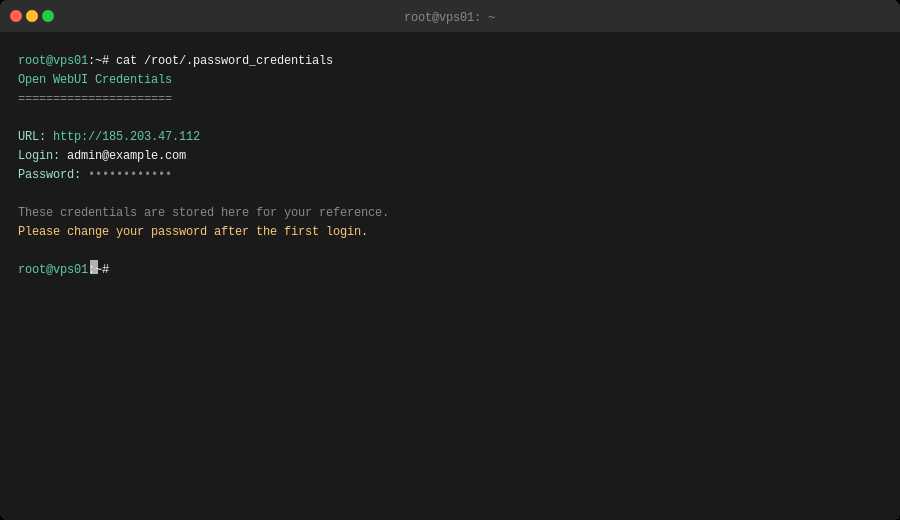
Save or copy the credentials — they'll be required when you log in for the first time. You can change the password later in the web interface settings.
Open the web interface
Enter the server's IP address into your browser's address bar:
http://IP_server
The Open WebUI login page will appear. Enter the credentials from the file /root/.password_credentials.
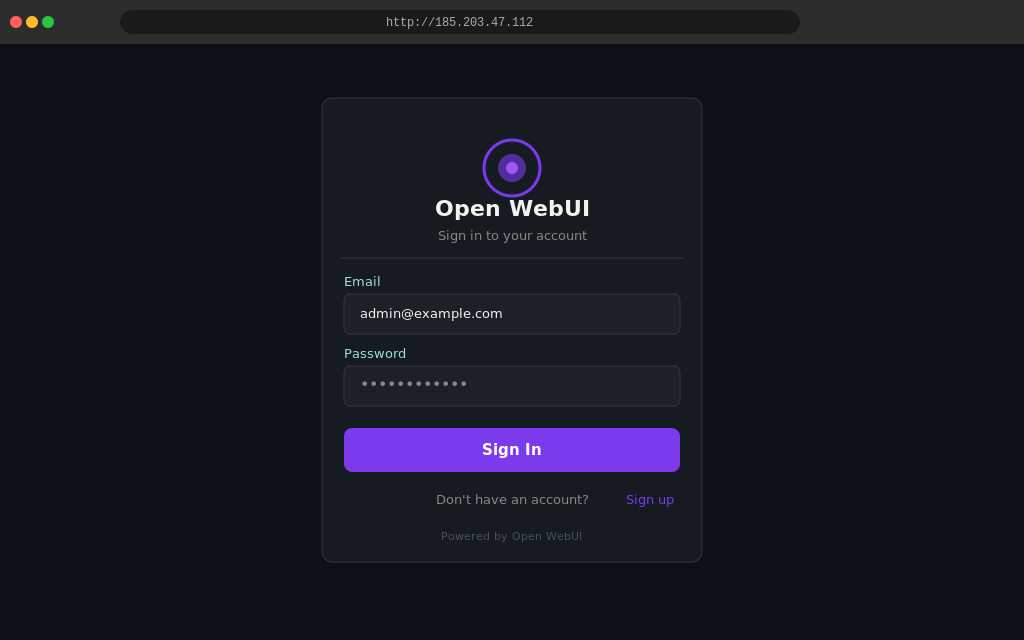
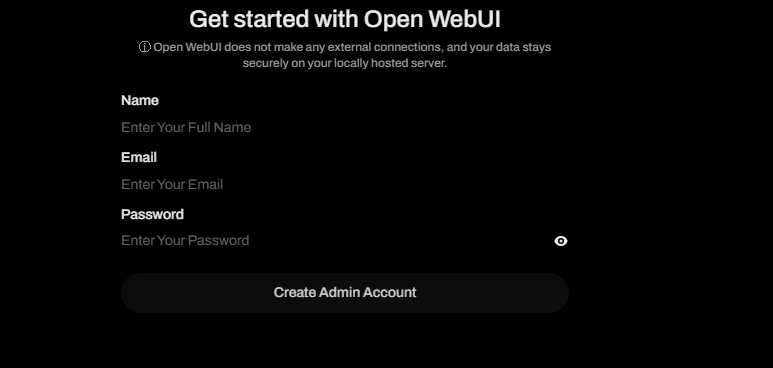
After signing in, you'll be taken to the Open WebUI dashboard, where you can create your primary administrator account.
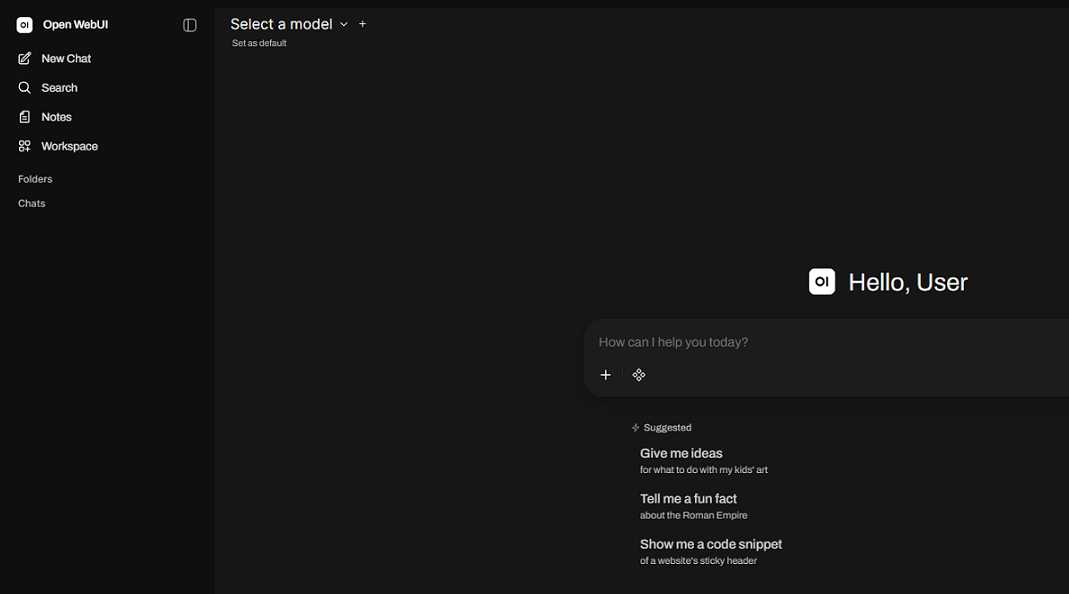
After signing in, you'll be taken to the main chat interface. If Ollama is already configured on the server, the available models will appear in the drop-down menu at the top of the screen.
What the interface can do
Open WebUI provides a familiar chat experience. Your conversation history is displayed on the left, while the active chat appears in the center. You can run multiple conversations simultaneously, switch between them at any time, and return to previous chats whenever needed.
- Switch models on the fly. You can change AI models without reloading the page. If Ollama isn't installed on the server, you can connect an external API through Settings → Connections.
- Upload documents. Attach PDF, DOCX, or TXT files using the paperclip button in the message input field. Open WebUI indexes the document contents, allowing the model to answer questions based on the uploaded text. For long-term storage, use Workspace → Knowledge Base.
- Manage users and teams. In Admin Panel → Users, you can create accounts for team members or enable self-registration. Newly registered users are assigned Pending status by default and require administrator approval before they can access the system. You can also configure access to specific AI models individually for each user.
Adding Ollama Models
Additional models can be downloaded directly from the interface. Go to Settings → Models, enter the model name from the Ollama catalog, and click Pull. The download progress is displayed in real time.
Resource requirements guide:
| Model | Disk Size | Min. RAM |
|---|---|---|
| llama3.2:3b | ~2 GB | 4 GB |
| mistral:7b | ~4.1 GB | 8 GB |
| llama3.1:8b | ~4.7 GB | 8 GB |
| qwen2.5:14b | ~8.9 GB | 16 GB |
Connecting External APIs
Open WebUI can connect to any API that uses the OpenAI-compatible format. GPT-4o, Claude, or another provider will appear in the shared model list alongside local Ollama models.
Go to Settings → Connections → OpenAI API. Enter the API key and the provider's base URL. For OpenAI, use:
https://api.openai.com/v1
After saving, the models will become immediately available for selection.
What to Configure Next
After the first login, it is recommended to complete these three steps:
- Set up Nginx with Let's Encrypt — using your own domain with HTTPS is more secure than exposing the service over plain HTTP via an IP address.
- Block direct access to port 3000 in the firewall — if you use Nginx, port 3000 should only be accessible from the local host and not exposed to the internet.
- Change the default password from
.password_credentials— this prevents the default credentials from being used permanently.
Installing through the marketplace removes all initial setup steps. You start with a ready-to-use environment and can spend the first few minutes configuring the system instead of deploying it.
 CLOUD VPS
  DEDICATED SERVERS
  HOSTING
  3 months