 SIGN IN / UP

 Control Panel






DirectAdmin is a hosting control panel for Linux known for its ease of use and low resource requirements. It is designed for administrators of VPS and dedicated servers, hosting providers, and owners of web projects. Installation is performed with a single command, and the panel installs and configures all the main services (web server, PHP, mail, DNS, FTP, databases) on its own.
In this article, we will go through installing DirectAdmin on a server running Ubuntu 22.04 LTS: requirements, preparation, running the installer, first login, post-installation setup, and common license issues.
Main features of DirectAdmin
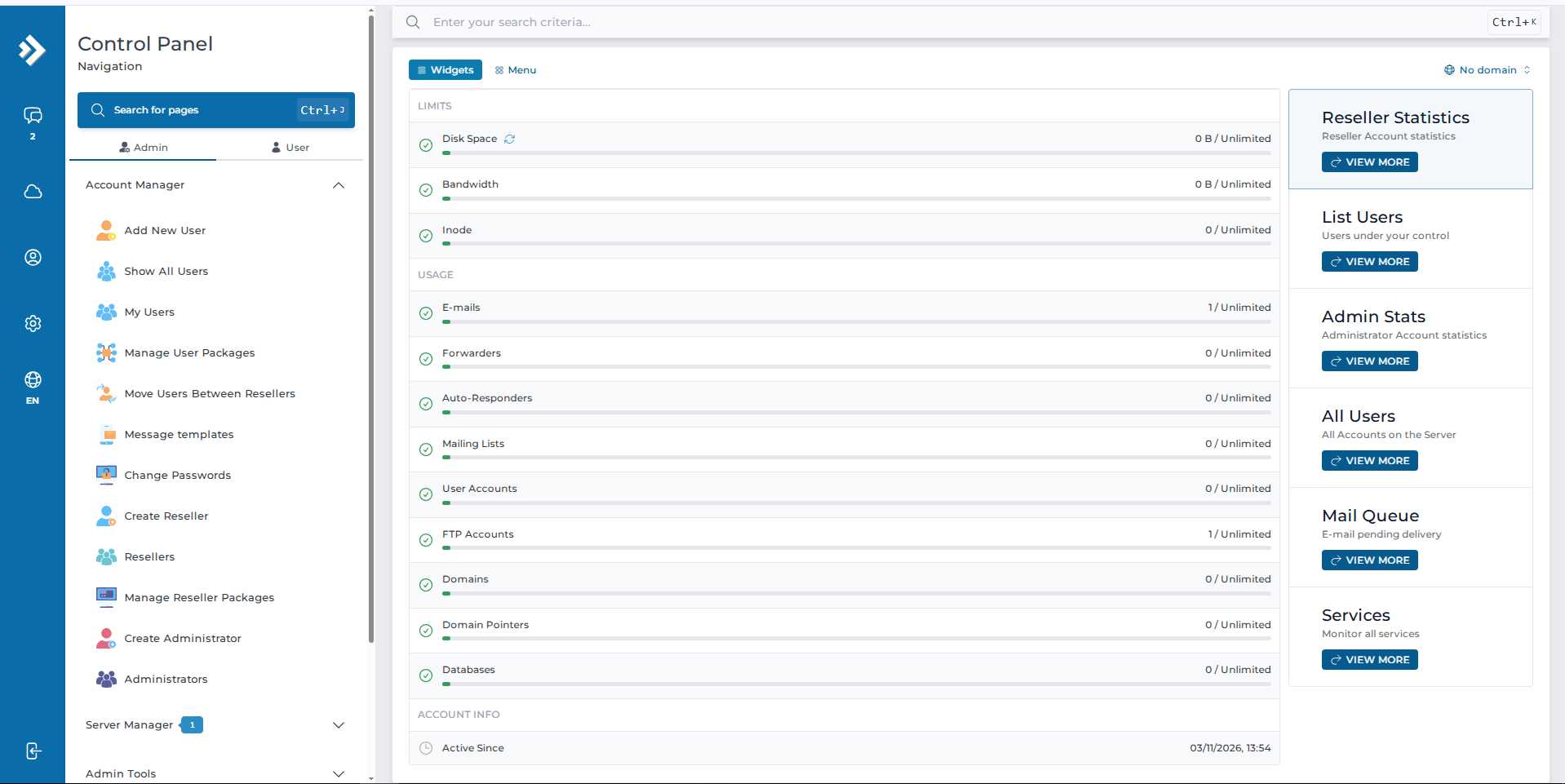
DirectAdmin has three access levels, and a single account can exist on all three (for example, admin). You can switch between levels using the drop-down list at the top of the Evolution skin: Admin ↔ Reseller ↔ User.
Admin (server administrator)
creating other administrators, reseller packages, and resellers;
global settings: hostname, DNS servers, security parameters, limits;
configuring HTTPd and PHP, managing IP addresses, Multi-Server Setup;
backing up and restoring the entire server, monitoring processes and the mail queue;
managing services via plugins, tickets, and system messages;
software updates.
Reseller
creating packages and user accounts;
managing IP addresses and name servers for their users;
backups for themselves and their users, customizing the panel's appearance;
working with tickets.
User (end user)
domains, subdomains, domain aliases, redirects, and DNS records;
FTP accounts;
mail: mailboxes, autoresponders, anti-spam filters;
databases and their users;
file management.
Technical features:
web servers: Apache, Nginx, LiteSpeed, OpenLiteSpeed; Nginx can be used as a reverse proxy for Apache;
PHP modes: php-fpm, fastcgi, lsphp; up to 9 simultaneously installed PHP versions are supported, with a choice for each domain;
spam protection: Rspamd, SpamAssassin, checks at the SMTP stage; for outgoing mail - rate limiting and BlockCracking;
DNS clustering (Multi-Server Setup), API, plugins, the Evolution skin with branding;
integration with WHMCS, Blesta, ClientExec, CloudLinux, CSF Firewall, Softaculous, Installatron, ImunifyAV/Imunify360.
Server requirements
Operating system
DirectAdmin supports Red Hat Enterprise Linux and its derivatives (CentOS Stream, Rocky Linux, AlmaLinux), Debian, and Ubuntu on the amd64 (x86-64) and arm64 architectures.
For Ubuntu 22.04 LTS, according to DirectAdmin's policy: OS end of support - April 2027, end of support from DirectAdmin - July 2027. Ubuntu 20.04 and 18.04 are no longer supported.
If the OS has reached the end of its life cycle, DirectAdmin's operation is not guaranteed: updates and security fixes stop being released, and if the infrastructure changes, even the license check may stop working. For new servers, consider Ubuntu 24.04 LTS or Debian 12/13.
Hardware
CPU: 500 MHz or higher is recommended (the more cores, the better);
RAM: at least 4 GB, plus at least 4 GB of swap;
Disk: at least 2 GB of free space after installing the OS (not counting website data);
Network: at least one static IPv4 address. For full DNS management, two addresses are sometimes needed; with a single address, an external DNS service may be required.
Software requirements
installed and running SSH;
a kernel and file system with disk quota support;
root access.
Developer warnings
Do not install Apache, PHP, MySQL, FTP, Sendmail, etc. in advance - DirectAdmin will install them itself. A clean OS installation is required.
It is not recommended to install DirectAdmin on a live production server or a server with another control panel: DirectAdmin does not convert existing data.
Recommended disk layout
Partition | Size |
|---|---|
/boot | 500 MB |
swap | 2 × RAM, but no more than 16 GB |
/ | everything else |
Preparing the server
Checking the OS version and resources
cat /etc/os-release
free -h
df -h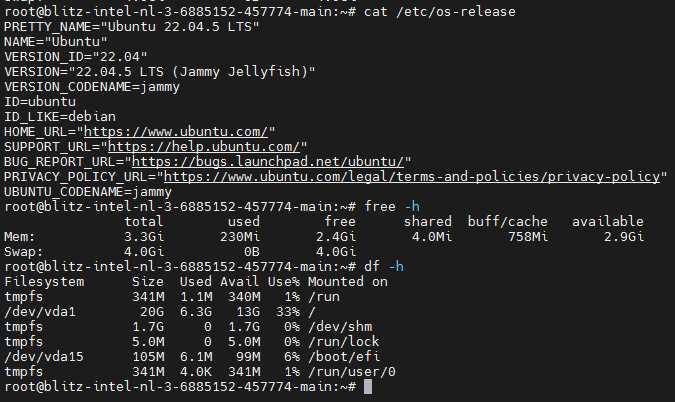
Make sure the amount of RAM and swap meets the requirements (4 GB each).
Updating packages
apt update
apt upgrade -y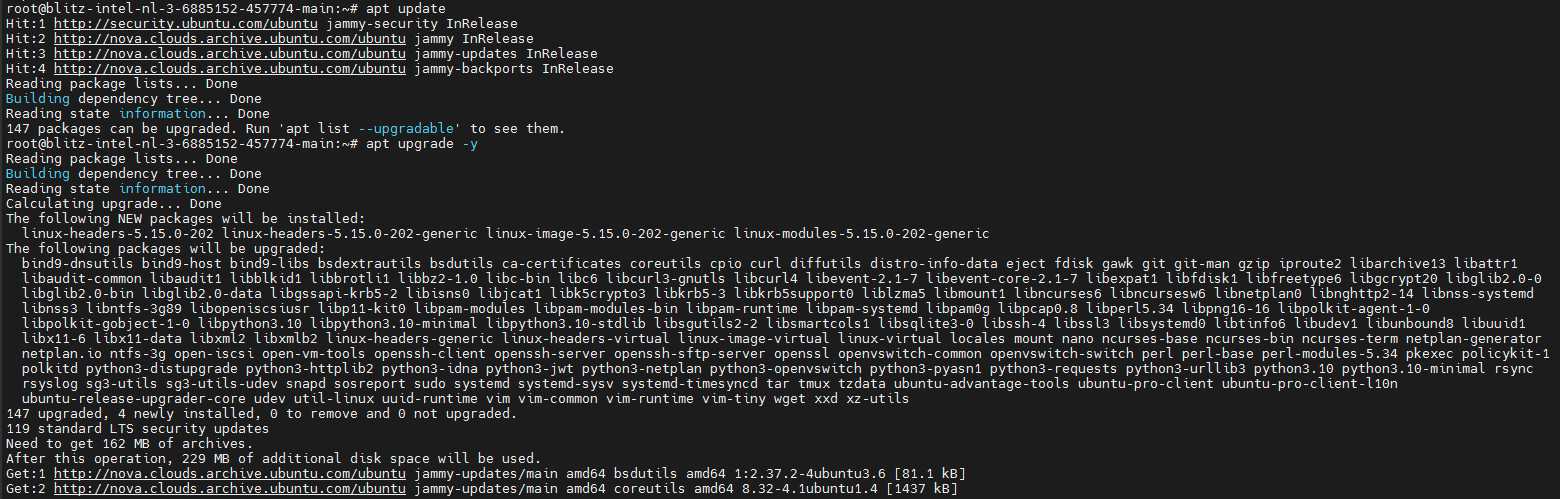
Hostname
The installer can accept the hostname through the DA_HOSTNAME variable (see below). If you want to set it at the system level in advance:
hostnamectl set-hostname server.yourdomain.comThe domain name must point (via an A record) to the server's IP address. By default, the installer tries to automatically issue a certificate for the hostname using the ACME protocol (Let's Encrypt); this behavior can be disabled with the DA_SKIP_AUTO_TLS_CERT variable.
Firewall
You do not need to disable the firewall separately before installation: by default, the installer installs CSF Firewall itself and enables Brute Force Monitor. If you do not want this, you can skip the CSF installation with the DA_SKIP_CSF=true variable.
If a third-party firewall is used on the server, open the ports from the table below.
Port | Service | Purpose |
|---|---|---|
20, 21 | FTP | FTP; passive mode requires a port range, for example |
22 | SSH | SSH access |
25, 465, 587 | Exim | SMTP |
53 (TCP and UDP) | Named | DNS |
80, 443 | web server | HTTP and HTTPS |
110, 143, 993, 995 | Dovecot | POP3 and IMAP |
2222 | DirectAdmin | panel access |
3306 | MySQL | open only if remote database access is needed |
2703 | Razor | optional: Razor check for SpamAssassin |
7080 | LiteSpeed / OpenLiteSpeed | optional: administrator web panel |
Installing DirectAdmin
The installation is performed as the root user. A command run via sudo from a regular (non-root) shell will not work - first get a root shell with the sudo -s command.
Web installer
sh <(curl -fsSL https://download.directadmin.com/setup.sh)The script will perform the initial system setup and display a URL for continuing the installation in a browser:
[setup.sh] Please open the following URL in your browser to continue the DirectAdmin installation:

http://192.168.0.1:35222/?key=DAdYbfkB5JIAQmCqYtziZ9vyTaCucbei
Before following the link, open port 35222 in the firewall:
ufw allow 35222Option 2. Installation from the command line
Pass the license key as a script parameter:
sh <(curl -fsSL https://download.directadmin.com/setup.sh) 'YOUR_LICENSE_KEY'The CLI installer uses the default settings.
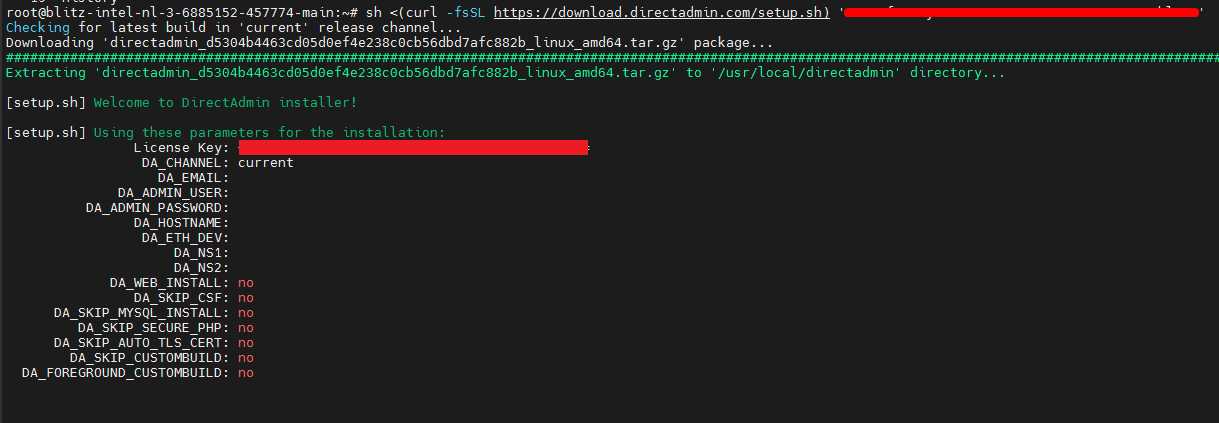
Option 3. Automated installation with parameters
For a fully automated installation, download the script and set the parameters using environment variables:
cd /root/
wget -O setup.sh https://download.directadmin.com/setup.sh

chmod 755 setup.sh
DA_HOSTNAME="server.yourdomain.com" bash setup.sh YOUR_LICENSE_KEY
Main variables:
Variable | Purpose |
|---|---|
| download channel: alpha, current, stable |
| hostname |
| default email |
| administrator account name and password |
| name servers |
| network interface |
| do not install CSF firewall |
| do not install MySQL/MariaDB |
| do not issue a certificate for the hostname via ACME |
| skip all CustomBuild actions |
| run the installer in interactive web mode |
Variables such as php1_release=8.0 (PHP version) or php_imap=yes (PHP module) are set via export before launch. For advanced configuration, you can place the options.conf and directadmin.conf files in /usr/local/directadmin/custombuild/ and /usr/local/directadmin/conf/ in advance - the installer will take its settings from them instead of the default values.
If you use DA_SKIP_MYSQL_INSTALL, the database must be installed and running before setup.sh starts, and the da_admin user must be configured in mysql.conf.
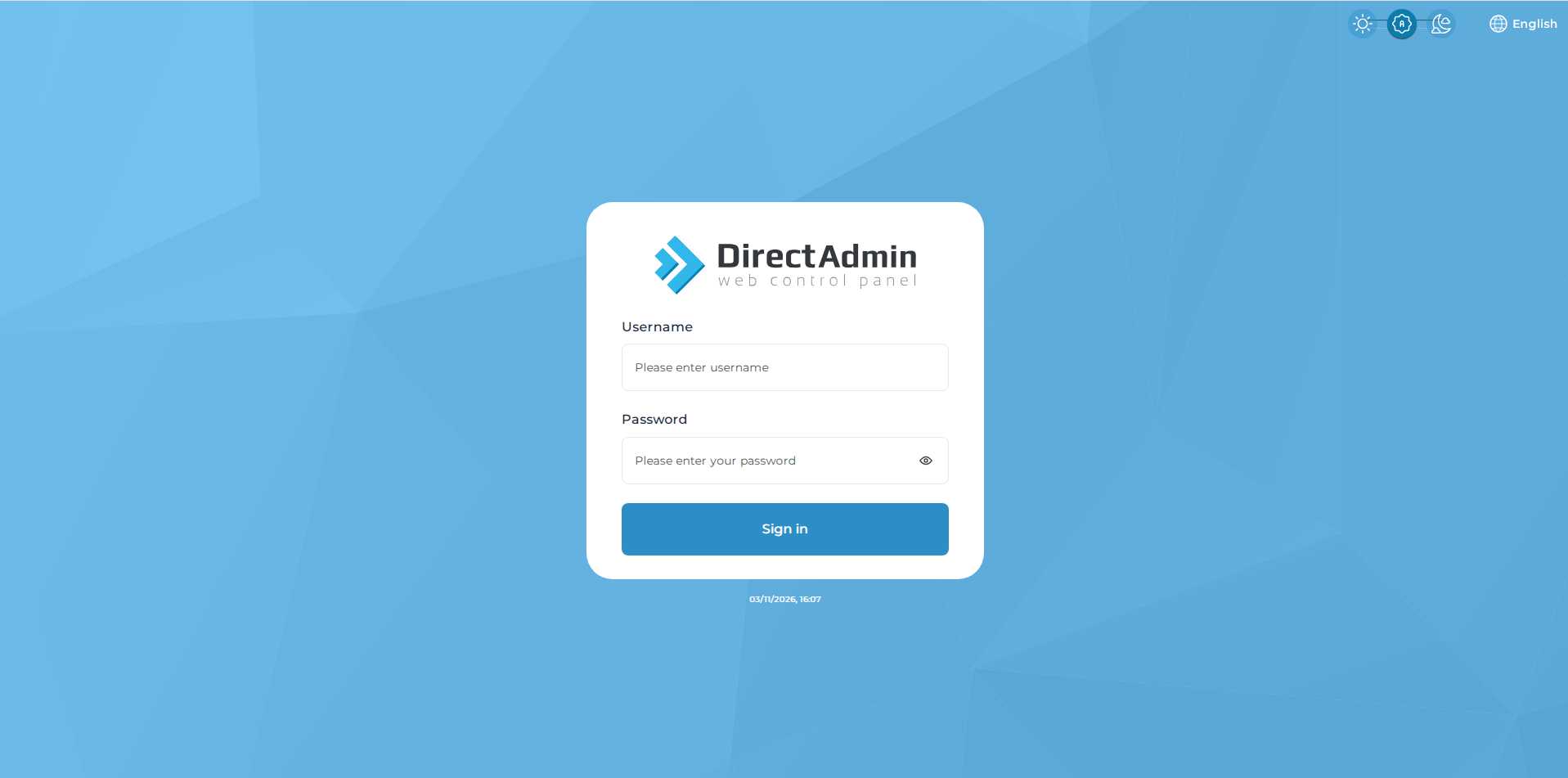
Logging in to the panel
After installation, the panel is available at:
http://yourdomain.com:2222
At the end of its work, the installer will display the administrator's login and password and a direct login link. The administrator credentials are also saved in the file:
cat /usr/local/directadmin/conf/setup.txt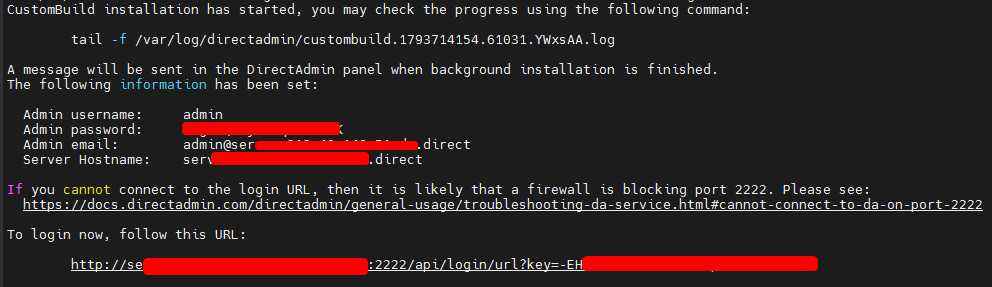
Post-installation setup
Recommendations from the First steps section of the official documentation:
Security
Make sure CSF Firewall and Brute Force Monitor are running (they are installed by default).
Enable automatic filling of
disable_functionsviasecure_php.Set up automatic updates for the software in use.
Install ModSecurity.
Require users to use strong passwords.
Enable Let's Encrypt for the hostname - this will also protect webmail and the DirectAdmin panel itself.
Configuration
Customize the panel's appearance (branding).
Choose a web server (Apache, Nginx, LiteSpeed, OpenLiteSpeed).
Configure name servers (DNS).
If necessary, enable sending mail from the user's IP address.
Enable backups - both system and user backups.
Enable BubbleWrap jail for users.
Possible problems
The installer does not run via sudo
The installation must be performed as root. Get a root shell and repeat the command:
sudo -s
sh <(curl -fsSL https://download.directadmin.com/setup.sh)
License errors
All licensing errors are written to the DirectAdmin service log:
journalctl -u directadminYou can check the license in the panel: Admin Level → Support & Help → Licensing.
Error | Cause and solution |
|---|---|
| No valid key is specified on the server. Check the key in your client area and run |
| The license is being used on another server (for example, after restoring from a backup onto a different machine) or the permitted number of servers has been exceeded. Restart the DirectAdmin service on the main server to get the license back |
| The server could not reach |
| Several servers are "hijacking" the license (no more often than once every 10 minutes). Leave one instance running, wait 10 minutes, and start the service |
| The server's IP is not among the license's allowed ranges. For dual-stack servers, add both IPv4 and IPv6 |
| Incorrect time on the server. Synchronize the clock |
| Check the license status in your client area |
You can change the key manually (DirectAdmin 1.63.8 and later):
echo 'YOUR_LICENSE_KEY' > /usr/local/directadmin/conf/license.key
chmod 0600 /usr/local/directadmin/conf/license.key
systemctl restart directadmin
Server time
For the license check, the time must be accurate. Synchronization recommended in the documentation:
/usr/sbin/ntpdate -b -u ntp.directadmin.comRestarting the DirectAdmin service
systemctl restart directadmin.serviceAdditional IP addresses do not work after a network restart
After each network restart, you need to run:
systemctl start startipsOperational recommendations
Regularly update DirectAdmin and the software installed via CustomBuild; for new installations, the graphical system package manager is enabled by default.
Set up backups, including to remote storage, and test restoring from the backups.
Restrict access to port 2222 to trusted addresses if possible.
Keep track of the OS support period: for Ubuntu 22.04 it expires in 2027, so plan your migration in advance.
For secure configuration, use the Securing DirectAdmin and Brute Force Monitor sections of the documentation.
Conclusion
Installing DirectAdmin on Ubuntu 22.04 comes down to three steps: prepare a clean server with enough RAM and swap, obtain an active license, and run setup.sh as root. After that, the panel is available on port 2222, and CSF Firewall and Brute Force Monitor are already protecting the server.
 CLOUD VPS
 DEDICATED SERVERS
 HOSTING
 3 months