 SIGN IN / UP
 Control Panel






In this guide, we will cover the most popular ways to upload and download files to a server: FTP/FTPS, SFTP, and SCP. I will show how to connect using FileZilla, WinSCP, and via the terminal (Linux/macOS/Windows PowerShell). I will also add practical security recommendations and typical errors that cause connections to “not work”.
What to choose: FTP, FTPS, SFTP
FTP
A classic file transfer protocol.
Cons: no encryption (login/password and data may be transmitted in plain text).
Port: usually 21/tcp.
FTPS (FTP + TLS/SSL)
This is FTP with encryption.
There are Explicit FTPS (usually also port 21) and Implicit FTPS (often port 990).
Pros: encryption.
Cons: sometimes requires proper configuration of passive ports and firewall.
SFTP
It is not related to “FTP” conceptually; it is file transfer over SSH.
Pros: encryption, easier to work with firewalls, stable operation over a single port.
Port: usually 22/tcp.
SCP
Also works over SSH (port 22).
Convenient for “quickly copying a file/folder” using commands.
Not as convenient for directory navigation as SFTP.
Recommendation: if you have a choice, use SFTP (or SCP for one-time copies). FTP/FTPS should be used only when it is really necessary.
What to prepare before connecting
You will need:
The server IP address or domain.
Port (21 for FTP/FTPS or 22 for SFTP/SCP, if unchanged).
Login and password or an SSH key.
An understanding of which user is suitable for the selected protocol.
Connecting via FileZilla (FTP/FTPS/SFTP)
FileZilla is one of the most convenient clients for working with files: local files on the left, server files on the right.
Quick connection (Quickconnect)
At the top of FileZilla, there are fields:
Host - IP or domain
Username - login
Password - password
Port - port
Default ports:
FTP/FTPS: 21
SFTP: 22
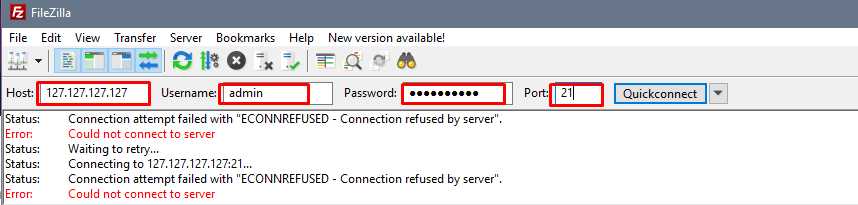
For regular work, it is better to save a profile in the Site Manager instead of entering the data manually every time.
Correct way: Site Manager
Open Site Manager (usually Ctrl+S) → New site and fill in:
Option A: SFTP (recommended)
Protocol: SFTP - SSH File Transfer Protocol
Host: IP/домен
Port: 22/21
Logon Type:
Normal (login/password) or
Key file (SSH‑key)
User: username
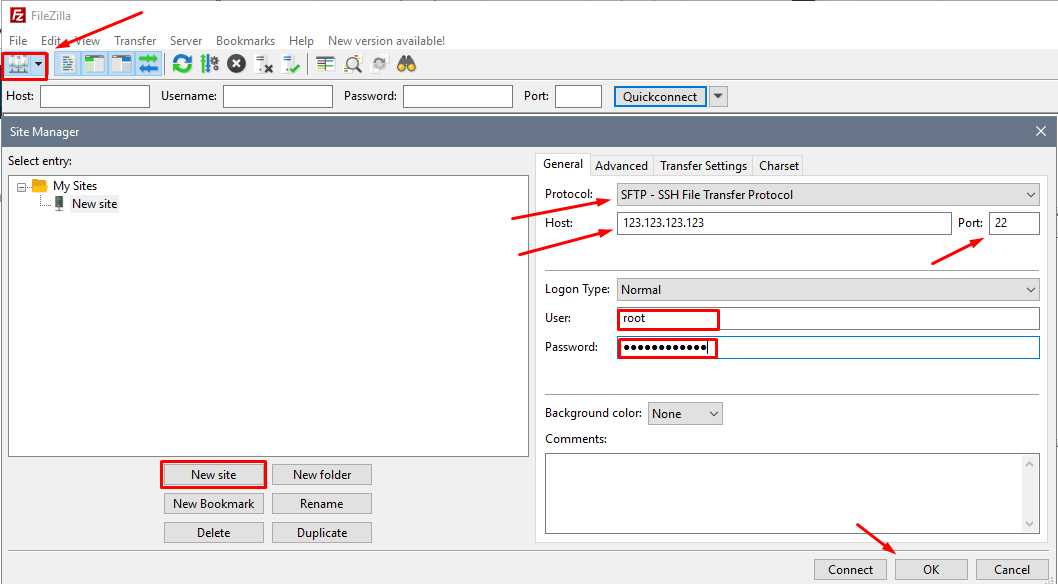
If you are connecting for the first time, FileZilla will ask you to confirm the SSH host key (server fingerprint). This is normal - confirm it if you are connecting to your own server.
Option B: FTP
Protocol: FTP
Encryption:
“Use explicit FTP over TLS if available” (FTPS Explicit) - preferred over plain FTP
Transfer Settings:
If behind a firewall/NAT - Passive mode usually works better.
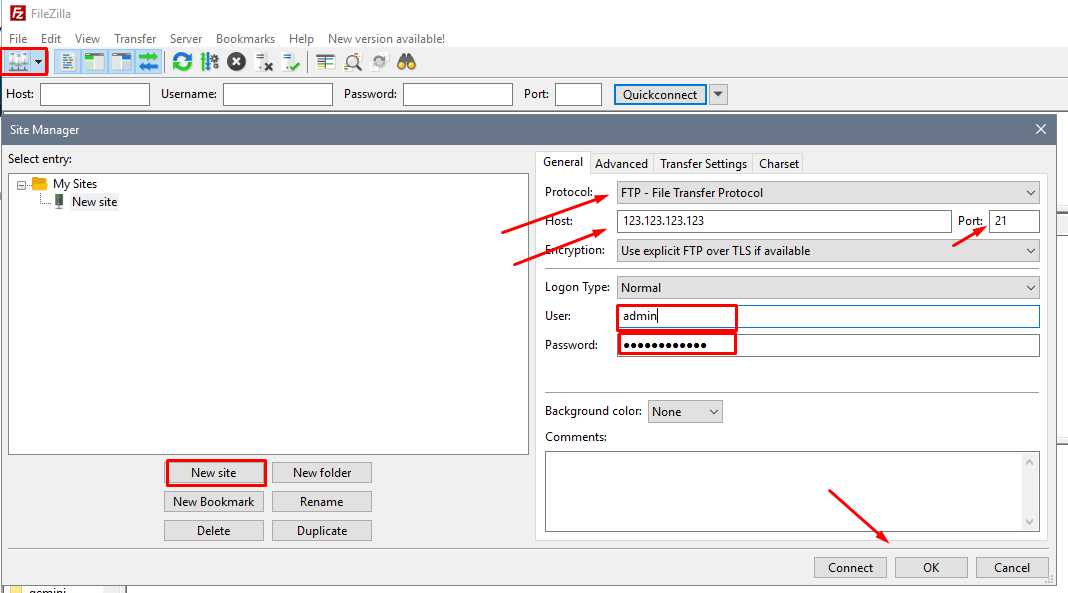
Connecting via terminal (Linux/macOS/Windows)
When you need to quickly upload or download files without a GUI, the sftp and scp commands are more convenient
SFTP (interactive)
Connection:
sftp user@IPIf the port is non-standard:
sftp -P 2222 user@IP
Useful commands inside sftp:
ls- list filescd- change directorypwd- current directoryget file.zip- download a fileput file.zip- upload a filemkdir dir- create a directoryexit- exit
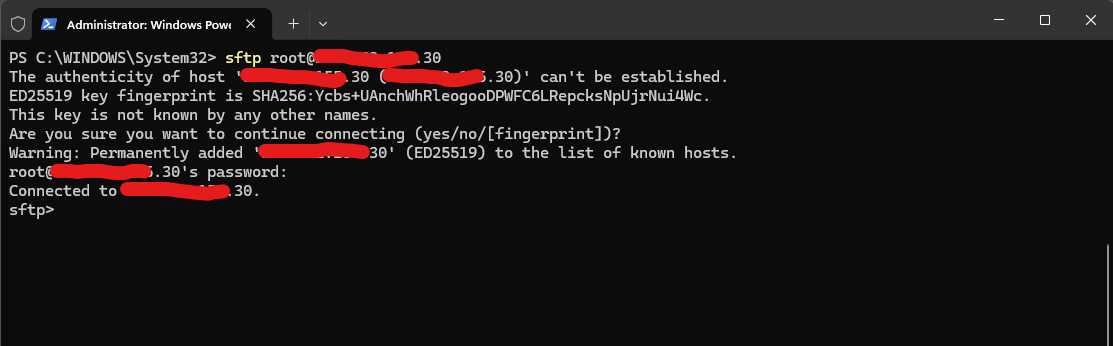
SCP (copying a file/folder)
Download a file from the server:
scp user@IP:/path/to/file.zip ./
Upload a file to the server:
scp ./file.zip user@IP:/path/to/dir/
Copy a folder recursively:
scp -r ./site user@IP:/path/to/dir/
Specify a port:
scp -P 2222 ./file.zip user@IP:/path/to/dir/
Connect using a key:
scp -i ~/.ssh/id_ed25519 ./file.zip user@IP:/path/to/dir/
Practical security recommendations
Use SFTP instead of FTP.
Whenever possible, switch to SSH keys instead of passwords.
Do not grant access as root “for file operations” — create a separate user/account.
Restrict access:
by IP (if possible),
by directory (for FTP accounts),
by minimal permissions (only the required folder).
Store the private key only with the owner (on a PC); do not send it “as is” via chats.
Common problems and quick fixes
Problem: Connection timed out / Cannot connect
Check if the port is open:
SFTP/SCP: 22/tcp
FTP/FTPS: 21/tcp (and passive ports if required)
Make sure the firewall or provider protection is not blocking the connection.
Problem: Authentication failed / Invalid login
For SFTP/SCP, use an SSH user.
For FTP/FTPS, use the FTP account created in the control panel.
Make sure the login includes the prefix (for example,
user_...) if the panel adds one.
Problem: Connects but does not show files / does not upload
A common cause for FTP/FTPS:
incorrect transfer mode (Active vs Passive)
passive ports are not open
Problem: “Host key changed”
This can happen after OS reinstallation or server migration.
If you are sure you are connecting to the correct server, remove the old key in the client and confirm the new one.
Conclusion
For secure and stable operation, choose SFTP (port 22).
SCP is an excellent option for one-time copies in the terminal.
Use FTP/FTPS when compatibility or a separate restricted account is required (and always consider Passive mode and port configuration).
 CLOUD VPS
  DEDICATED SERVERS
  HOSTING
  3 months