---
title: 'How to setup an SFTP-server quickly in Windows | Zomro'
description: 'Quick setup of the SFTP-server on the server with Windows OS using Rebex Tiny SFTP Server | Zomro'
image: 'https://dx86q6oq7ry0e.cloudfront.net/uploads/media/blog/a52%40server-panel.net/2023/08/22/screenshot_1.jpg'
---
![opened image]()
* [Zomro](https://zomro.com/)
* [FAQ](https://zomro.com/blog/faq/)
* How to setup an SFTP-server quickly in Windows
# How to setup an SFTP-server quickly in Windows
22-08-2023
In this tutorial, I will describe how you can set up a simple SFTP server in 2 minutes using program **Rebex Tiny SFTP Server** , without dancing with the IIS web server and performing other secret rituals for summoning Windows components that Microsoft developers love to do so much.
This SFTP server does not require any additional actions or installation of additional software, only setting the configuration and launching the program.
The program will configure all the necessary minimum steps for the SFTP server operation.
**SFTP (Secure File Transfer Protocol)** \- a protocol designed to copy and perform other file operations over a reliable and secure connection.
To get started, download the program from the site , the program is free, at least for now in 2023.
Unpack the archive into any folder and open it,
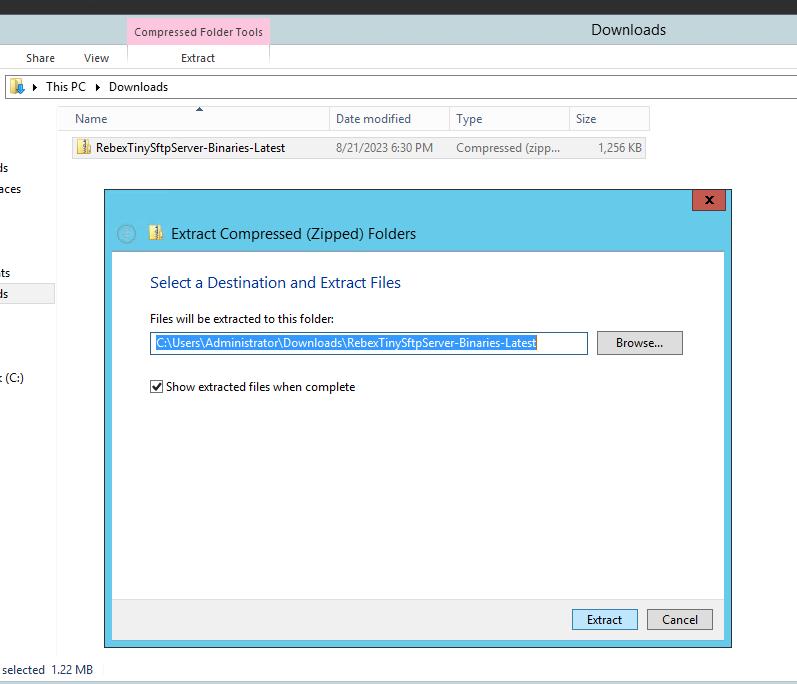
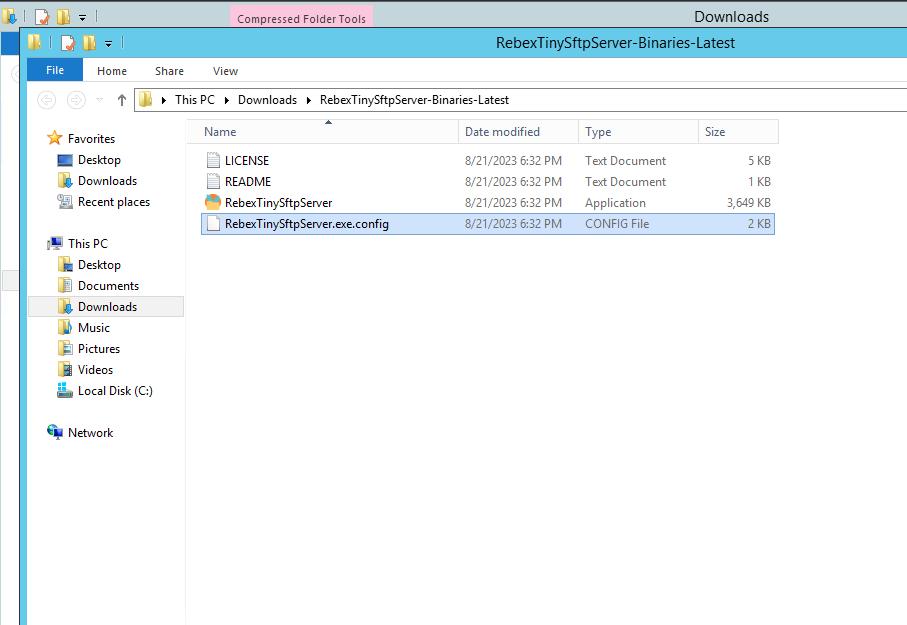
inside you should see several files, we are interested only in 2 of them:
**RebexTinySftpServer.exe.config** \- configuration file
**RebexTinySftpServer.exe** \- executable file
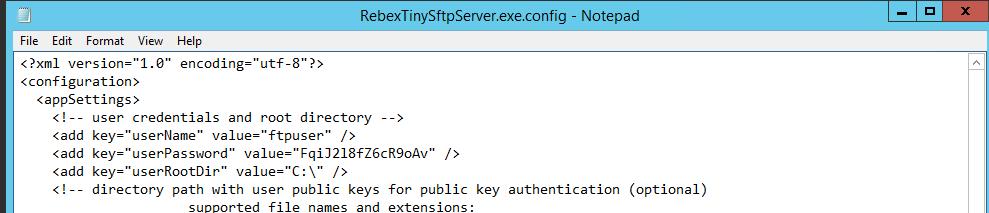
First, let's set the user, password, and root directory in the configuration file:
Replace data in the next rows:
by this:
Where I specified "ftpuser" as the **username** , his **password** : "FqiJ2l8fZ6cR9oAv" and the **root folder** "C:\".
Be sure to change this data to any other value for security purpose.
Save the file.
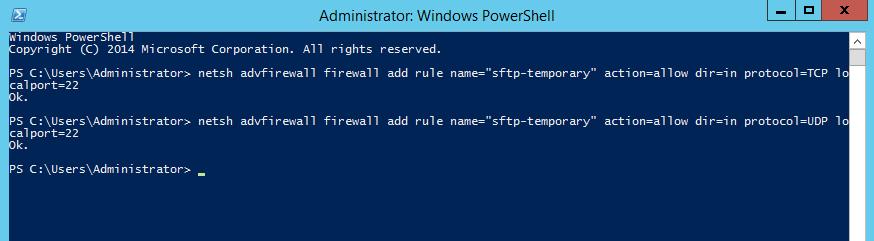
Next, open the port in the server's firewall, to do this, open the Powershell program and enter the following 2 commands:
netsh advfirewall firewall add rule name="sftp-temporary" action=allow dir=in protocol=TCP localport=22
netsh advfirewall firewall add rule name="sftp-temporary" action=allow dir=in protocol=UDP localport=22
You can run the **RebexTinySftpServer.exe** program, you will see the "**Start** " button in the program window, click it to start the SFTP server.
The button description will change to the "**Stop** ", it means that SFTP-server is running
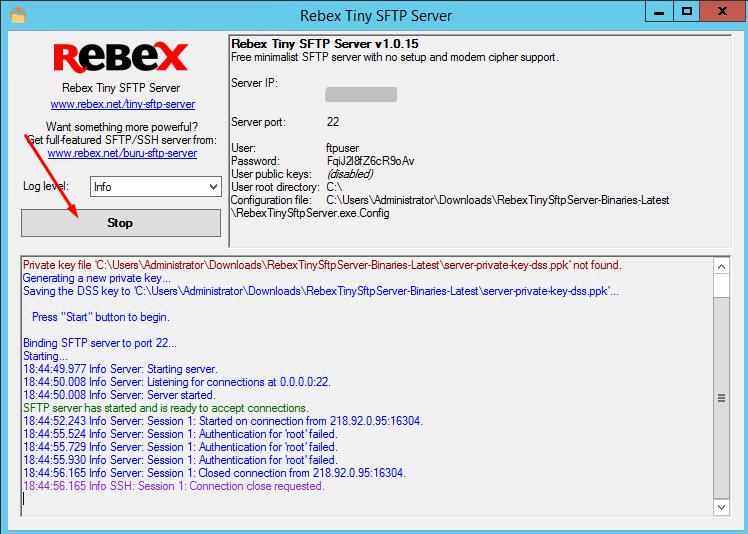
Now you can connect to the server via SFTP protocol, for example I will be using the **Filezilla** program on my other computer, i am entering my data (your IP address will be different)
As you can see, I was able to connect to the server successfully.
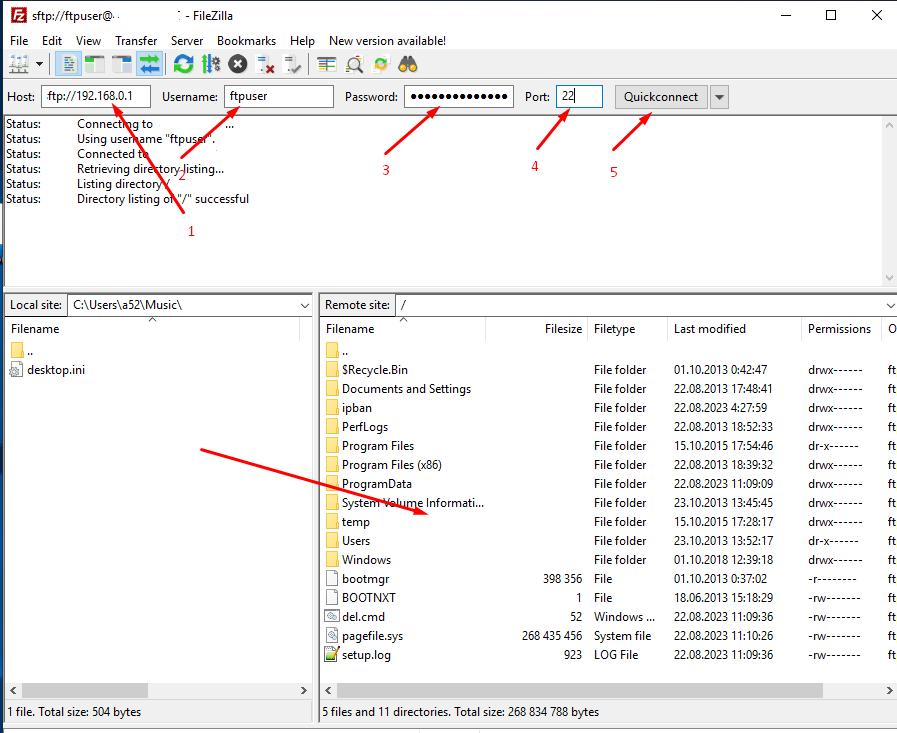
After copying the files and when you no longer need the SFTP connection, just press the **Stop** button in the program and close it.
For security reasons, it is better **not** to leave this program running all the time, but to launch it only when it is needed.
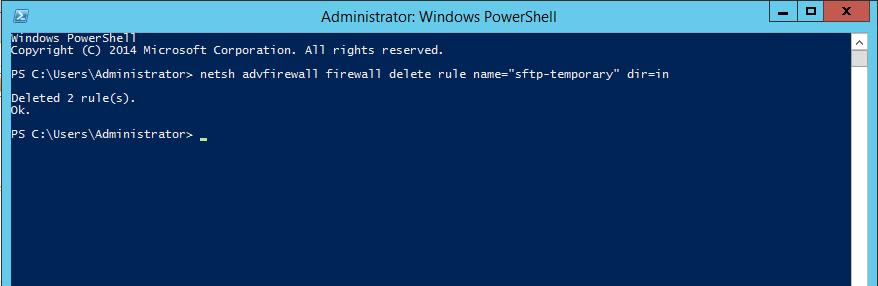
I also recommend that after stopping the program, you close the port that was opened earlier - for this, enter the following command in **Powershell** :
netsh advfirewall firewall delete rule name="sftp-temporary" dir=in
Similar articles:
[How to grant access to Windows Server by IP or IP range](https://zomro.com/blog/faq/337-kak-ogranichit-dostup-k-windows-server-po-ip) [How to Install and Configure IIS FTP Server on Windows Server 2019](https://zomro.com/blog/faq/315-kak-ustanovit-i-nastroit-ftp-server-iis-na-windows-server-2019) [How to install MariaDB in Docker](https://zomro.com/blog/faq/290-kak-ustanovit-mariadb-v-docker) [How to install RouterOS on a virtual server (VPS/VDS)](https://zomro.com/blog/faq/266-kak-ustanovit-routeros-na-virtualnyj-server-vps-vds) [Clearing inodes on Linux servers](https://zomro.com/blog/faq/373-clearing-inodes-on-linux-servers)
[ Dedicated servers from €88.80/mon ](/dedicated-servers)