---
title: 'How to install Nginx in Docker-Compose | Zomro'
description: 'How to install Nginx using Docker Compose on a host server and configure it so that you can view the index.html file in the browser'
image: 'https://dx86q6oq7ry0e.cloudfront.net/uploads/media/blog/a48@server-panel.net/2023/02/01/1677427953_3.png'
---
![opened image]()
* [Zomro](https://zomro.com/)
* [FAQ](https://zomro.com/blog/faq/)
* How to install Nginx in Docker-Compose
# How to install Nginx in Docker-Compose
26-02-2023
In this article, we will look at how to install Nginx using Docker Compose on a host server and configure it so that you can view the index.html file in a browser on port 9999.
## **Installing Docker and Docker Compose**
Before you start, make sure you have Docker and Docker Compose installed on your host server. If they are not yet installed, you can install them by following the instructions for [Docker for Centos 7](https://zomro.com/rus/blog/faq/287-kak-ustanovit-docker-na-centos-7) and for [Ubuntu 20.04](https://zomro.com/rus/blog/faq/286-kak-ustanovit-docker-na-ubuntu-2004) and Docker Compose.
##
**Creating the index.html file on the host server**
##
The first step is to create the index.html file on the host server. We will use it to demonstrate Nginx when we run it in a Docker container. You can create this file anywhere on the host server where you have write access. In this example, we will create it in the **/var/www/html** directory.
Run the following command to create the directory and navigate to it:
mkdir -p /var/www/html && cd /var/www/html
Let's create the index.html file
vim index.html
Insert the following code into it:
Hello, Nginx!
Hello, Nginx!
This is a test page served by Nginx in a Docker container.
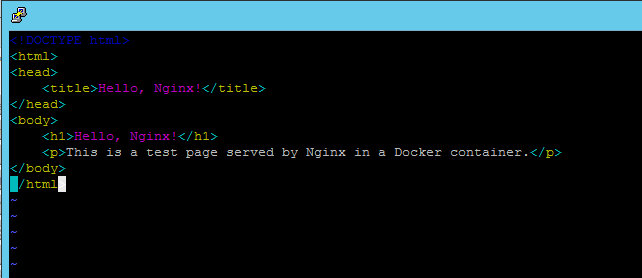
Save the file in any convenient location on the host server. In this example, we will save the file in the /var/www/html directory.
###
**Creating the docker-compose.yaml file**
###
We need to create the docker-compose.yaml file, which defines the Nginx container and its configuration. This file can be created anywhere on the host server where you have write access. In this example, we will create it in the /opt/nginx directory.
Run the following command to create the directory and file:
mkdir -p /opt/nginx && cd /opt/nginx
vim /opt/nginx/docker-compose.yaml
Add the following content to the docker-compose.yaml file:
version: '3'
services:
nginx:
image: nginx:latest
ports:
- "9999:80"
volumes:
- /var/www/html:/usr/share/nginx/html
restart: always
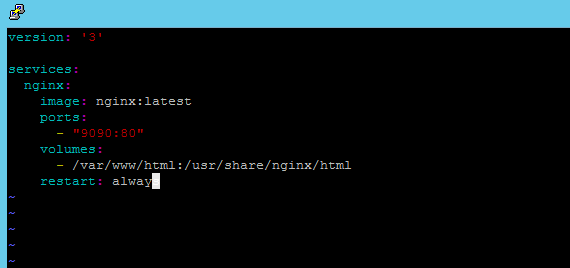
Where:
**services -** defines the list of services we want to run using Docker Compose.
**nginx -** is the name of the service we want to run.
**image -** specifies the Docker image we want to use. In this case, we are using the official Nginx image tagged as latest.
**ports -** defines the port mapping between the host machine and the container. In this case, we map port 9999 on the host machine to port 80 in the container.
**volumes -** defines the volume we want to use for storing data inside the container. In this case, we mount the /var/www/html directory on the host machine to the /usr/share/nginx/html directory in the container.
**restart -** specifies whether Docker should automatically restart the container if it stops. In this case, we indicate that the container should always restart.
### **Running Docker Compose**
###
Now we are ready to run the Nginx container using Docker Compose. To do this, run the following command from the directory where the **docker-compose.yaml** file is located:
docker-compose up -d

This command will start the Nginx container in the background and output its ID.
You can check if the container is running with the command:
docker-compose ps
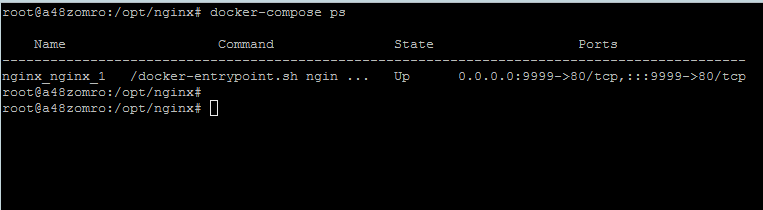
### **Checking Nginx**
###
Now we can check the operation of Nginx by opening a web browser and navigating to http://:9999. In our example, this will be **http://IP:9999**.
If everything is set up correctly, you should see the "**Hello, Nginx!** " page.
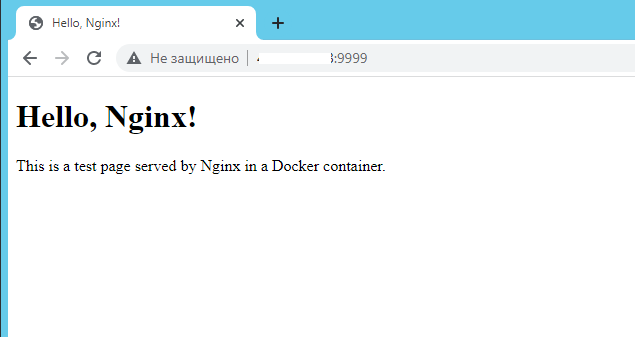
That's it! Now you can use Docker Compose to manage Nginx containers and other applications on your host server.
We also suggest you other useful articles:
* [List of important commands for working with Docker-compose](https://zomro.com/blog/faq/304-spisok-vazhnyh-komand-dlja-raboty-s-docker-compose)
* [How to install Nginx in Docker-Compose](https://zomro.com/blog/faq/317-kak-ustanovit-nginx-v-docker-compose)
* [How to Deploy Any Version of PHP in Docker-Compose](https://zomro.com/blog/faq/348-how-to-deploy-any-version-of-php-in-docker-compose-for-beginners)
Similar articles:
[How to create a Telegram bot for monitoring remote hosts](https://zomro.com/blog/faq/316-kak-sozdat-telegram-bota-dlja-monitoringa-udalennyh-hostov) [How to allow ICMP packets in Windows Server 2022, 2019, 2016](https://zomro.com/blog/faq/279-kak-razreshit-icmp-pakety-v-windows-server-2022-2019-2016) [Basics of working with the screen utility](https://zomro.com/blog/faq/295-rabota-s-utilitoj-screen) [Connecting to the server via RDP on Windows](https://zomro.com/blog/faq/147-podkljuchenie-k-serveru-po-rdp-na-windows) [How to track SSH connections to the server using a Telegram bot](https://zomro.com/blog/faq/329-kak-otslezhivat-ssh-podklyucheniya-k-serveru-s-pomoshyu-telegram-bota)
[ Premium Cloud VPS from €7.95/mon ](/premium-vps)