 SIGN IN / UP
 Control Panel






Connecting to a Server via SSH
To connect to your server, you can use various SSH terminals or IDEs with plugins that support SSH connections. SSH is an application-layer network protocol used for connecting to remote computers and managing them using tunneling technology.
There are many software solutions available for connecting through this protocol, but in this article we will focus on an easy-to-use terminal — PuTTY. The program was developed for Windows systems, so if you prefer working with Linux distributions or own a Mac device, the built-in terminal will be more convenient for you, as it is similar to the Windows command line.
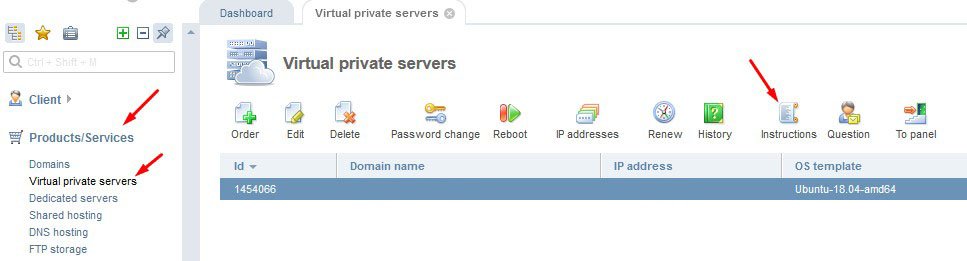
Connection credentials can be found in your personal account at cp.zomro.com => Products/Services => Virtual Servers / Dedicated Servers => select your server => click the “Instruction” button.
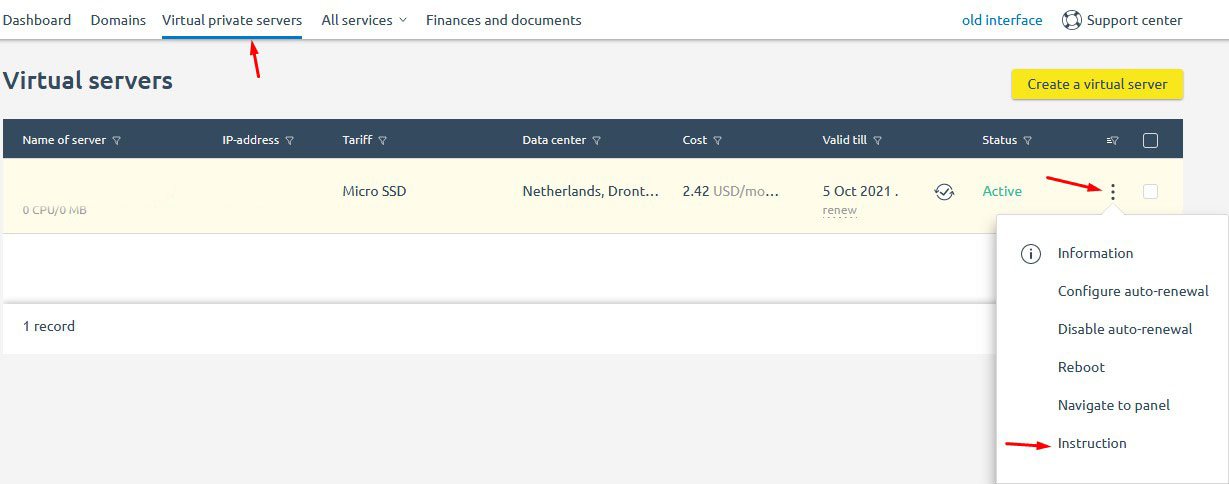
For users who have already migrated to BILLmanager 6:
“Virtual Servers” tab => select the server => click the button with three vertical dots on the right side => choose “Instruction” from the context menu.
BILLmanager 5 Interface
BILLmanager 6 Interface
Connecting to a Server from Windows
Find the connection credentials for the root user and launch the PuTTY application:
“Start” => type the program name into the search bar.
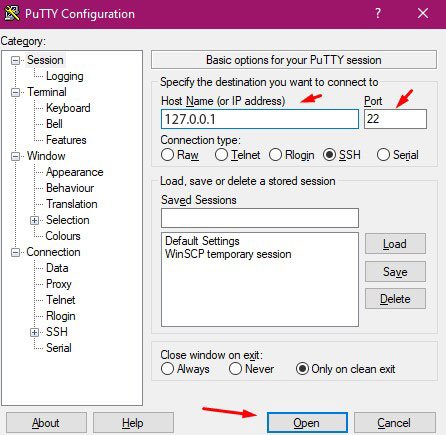
In the opened application, enter your server IP address and specify the SSH port, which is 22 by default.
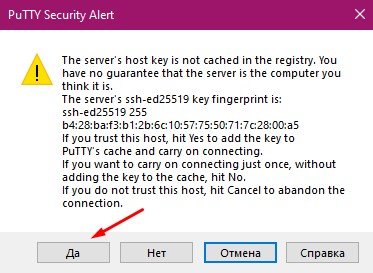
Next, the program will ask you to confirm the connection to an unknown server if you have not connected to it before — accept the warning.
Enter the username root, copy the password from the server instructions, and paste it into the PuTTY window using the right mouse button.
Please note that the password is being entered but remains invisible due to Linux operating system security policies.
The result should look like this.
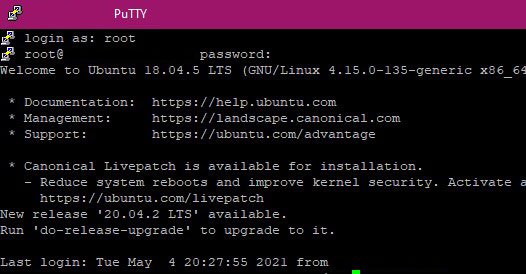
If you do not want to enter the IP address and username every time, you can save the settings for a specific server.
In PuTTY settings, open the “Connection” tab => “Data” section => in the “Auto-login username” field enter the username root or any other user you work with.
Then, in the “Session” tab, specify the IP address, port, and session name in the “Saved sessions” field, and click the “Save” button.
There is also an authentication method using an encrypted SSH key, but this topic will be covered in the next article.
Connecting to a Server via Linux / Mac
To connect from Linux or Mac OS, open the terminal:
- Linux:
Ctrl + Alt + T - Mac OS:
Command + T
After that, enter the command:
ssh root@IPIf after entering the command the terminal displays a message related to an unknown host, you should follow the recommendations and manually add the key to the known_hosts file.
The command looks like this:
ssh-keygen -f /home/<user>/.ssh/known_hosts -R ip.ip.ip.ipFor Linux, just like for Windows, it is possible to save connection parameters. This is done by creating an alias in the shell configuration file.
We will cover aliases in more detail in the next article very soon.
 CLOUD VPS
  DEDICATED SERVERS
  HOSTING
  3 months